Tracking
Takaro provides comprehensive tracking capabilities for monitoring player activity, inventory changes, and movement history across your game servers. This data is collected automatically and can be visualized through an interactive interface.
Overview
Takaro tracks the following data for each player:
- Real-time player positions displayed on an interactive map (7 Days to Die)
- Inventory tracking with current items and historical changes
- Movement history with path visualization and playback
- Multi-server support for managing multiple game servers
Note: Inventory tracking works for all Takaro-supported games. Map visualization is currently available for 7 Days to Die only.
Getting Started
- Navigate to tracker.takaro.io
- Select your game server from the dropdown
- Click View Map to load the map and player data
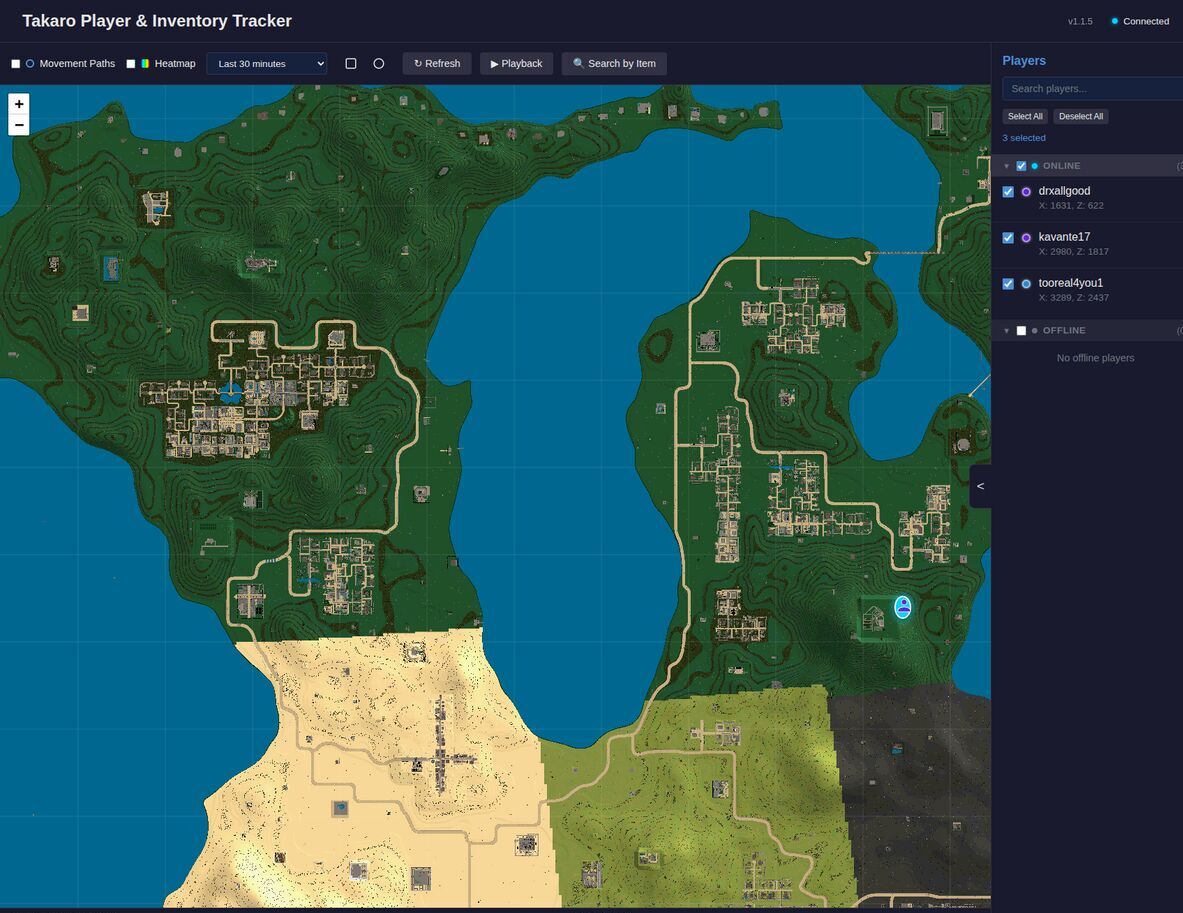
Once connected, you'll see an interactive map with player markers showing current positions.
Player Tracking
The map displays your game world with player positions updated every 30 seconds.
Player Markers
- Green markers indicate online players
- Gray markers show offline players at their last known position
Map Controls
- Zoom: Use the + / - buttons or scroll wheel
- Pan: Click and drag to move around the map
- Time Range: Select how much historical data to display (30 seconds to 7 days)
Viewing Player Information
Click on any player marker to view their details.
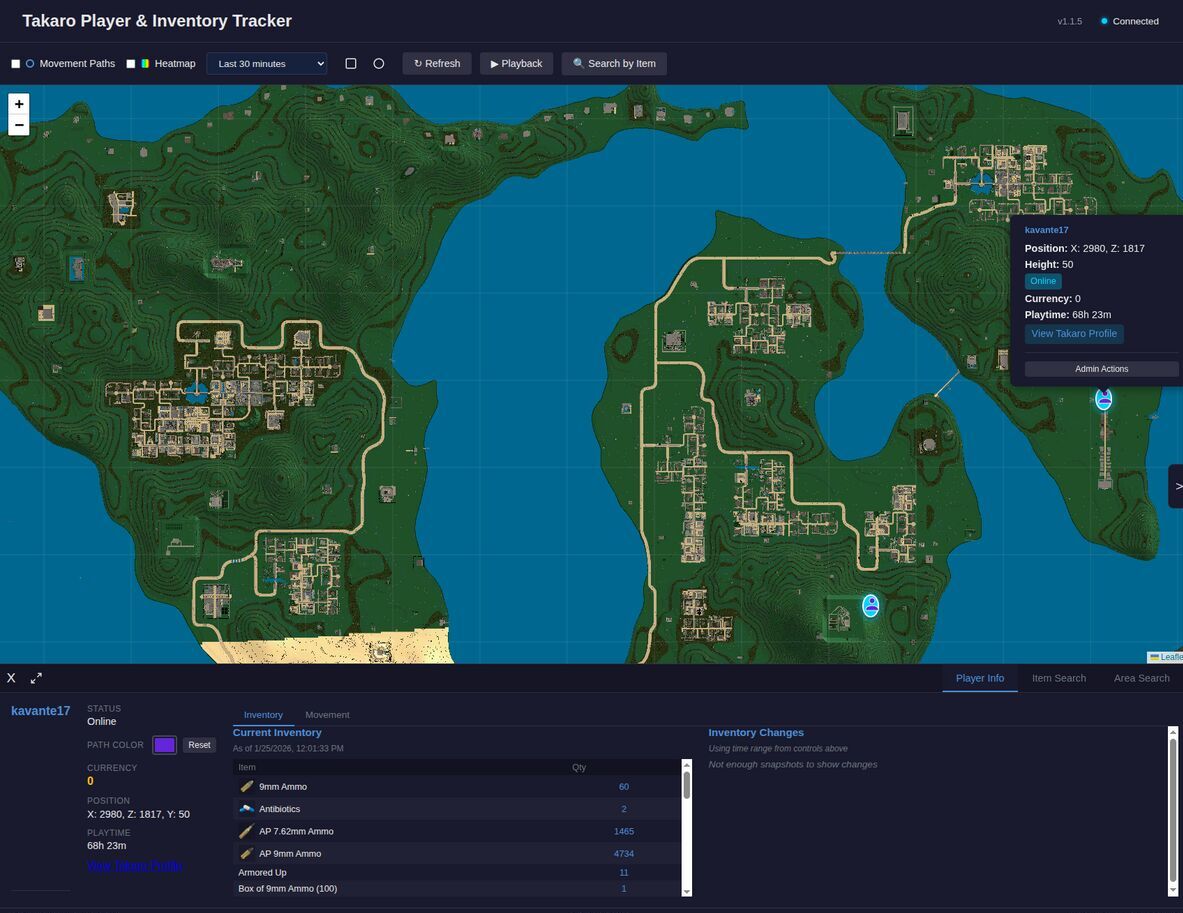
The player info panel shows:
- Status: Online or offline
- Position: Current X, Y, Z coordinates
- Playtime: Total time played on the server
- Currency: In-game currency balance
- Path Color: Customize the color used for this player's movement path
Inventory Tracking
Current Inventory
The Inventory tab displays all items the player currently has, including quantities and quality levels.
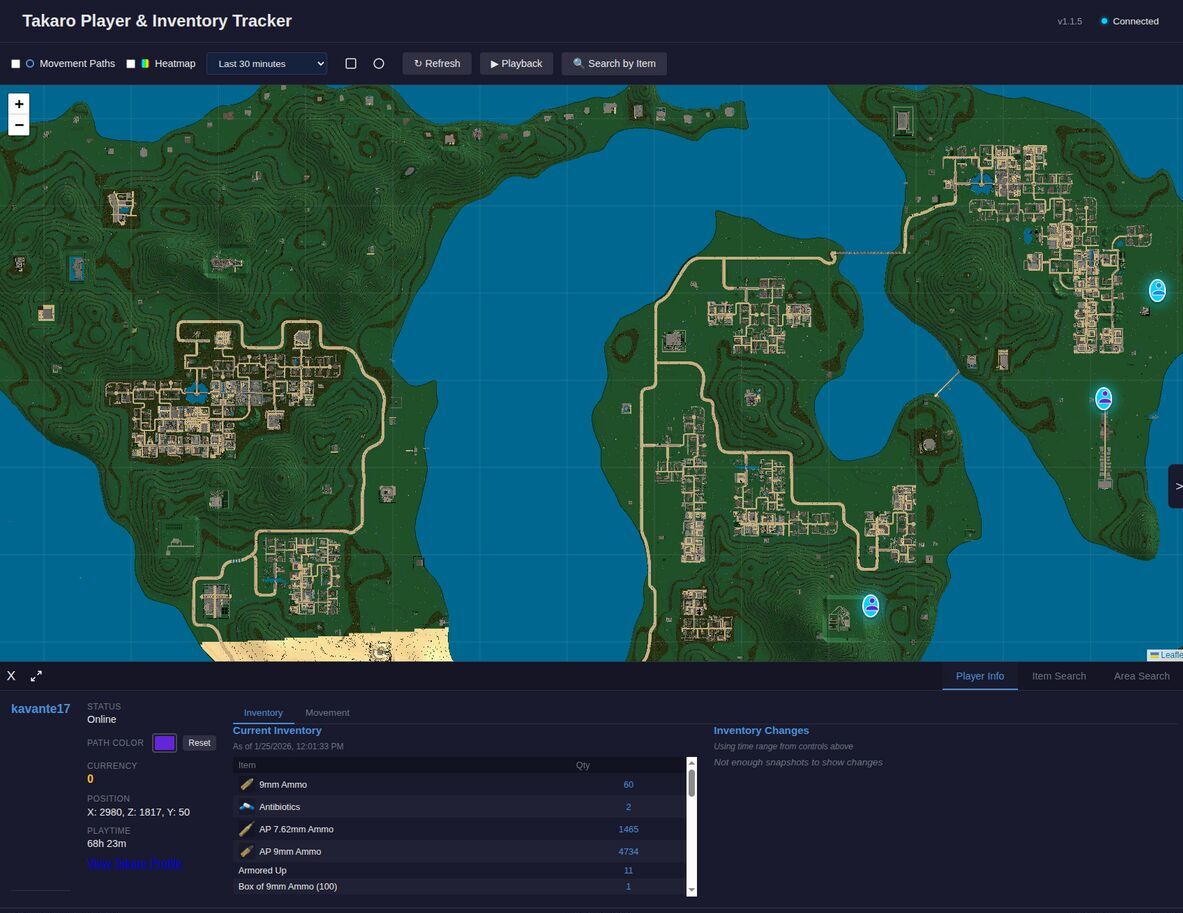
Items are shown in a sortable table with:
- Item name (with quality badge if applicable)
- Quantity
Click any item row to highlight when that item was gained or lost in the changes timeline.
Inventory Changes
The Inventory Changes section shows a chronological timeline of items gained and lost.
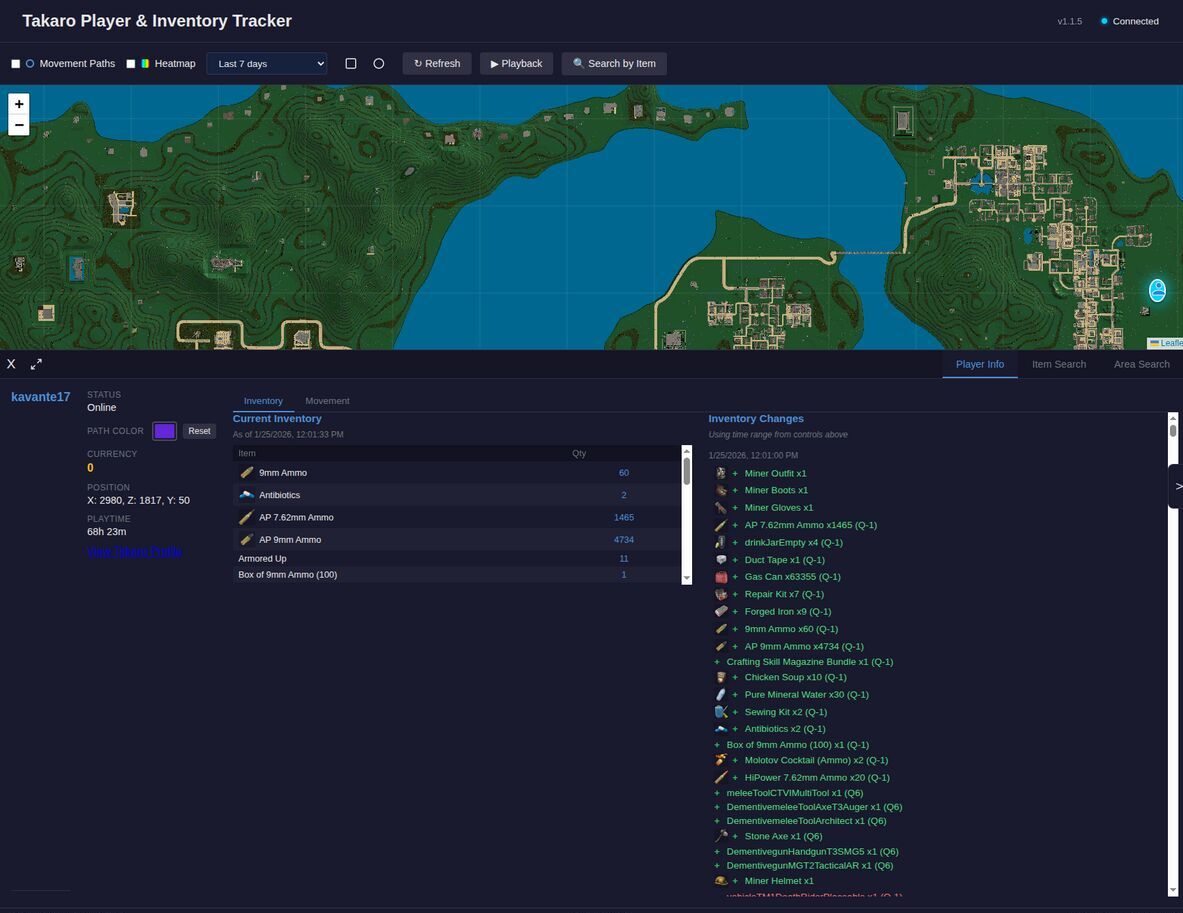
Changes are color-coded:
- Green (+): Items gained
- Red (-): Items lost
- Yellow (~): Quantity changes (partial gains/losses)
Use the time range selector at the top to adjust how far back to view changes.
Movement History
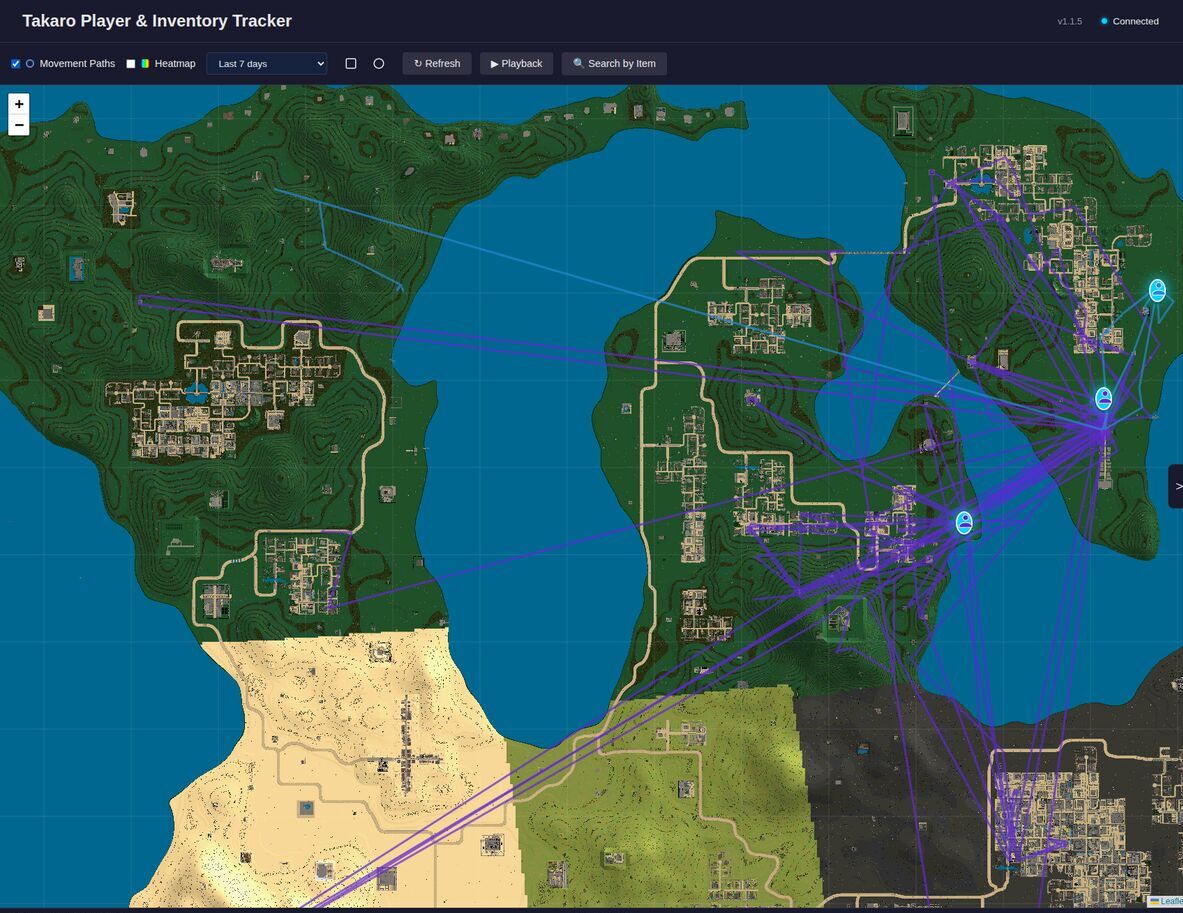
Enable Movement Paths to visualize where players have traveled.
Viewing Paths
- Check the Movement Paths checkbox in the toolbar
- Select a time range to control how much history to display
- Each player's path is shown in their assigned color
Customizing Path Colors
- Click on a player marker
- In the player info panel, click the color picker next to "Path Color"
- Select a new color for that player's path
Playback Mode
Use playback to animate player movements over time:
- Click Playback in the toolbar
- Use the play/pause button to start/stop animation
- Drag the timeline slider to jump to specific times
- Adjust playback speed (1x, 2x, 5x, 10x)
- Click X to exit playback mode
Additional Features
Search by Item
Click Search by Item to find players who have specific items in their inventory.
Area Search
Use the drawing tools to search for players in a specific area:
- Rectangle: Draw a bounding box to find players within
- Circle: Draw a radius to find players nearby a point
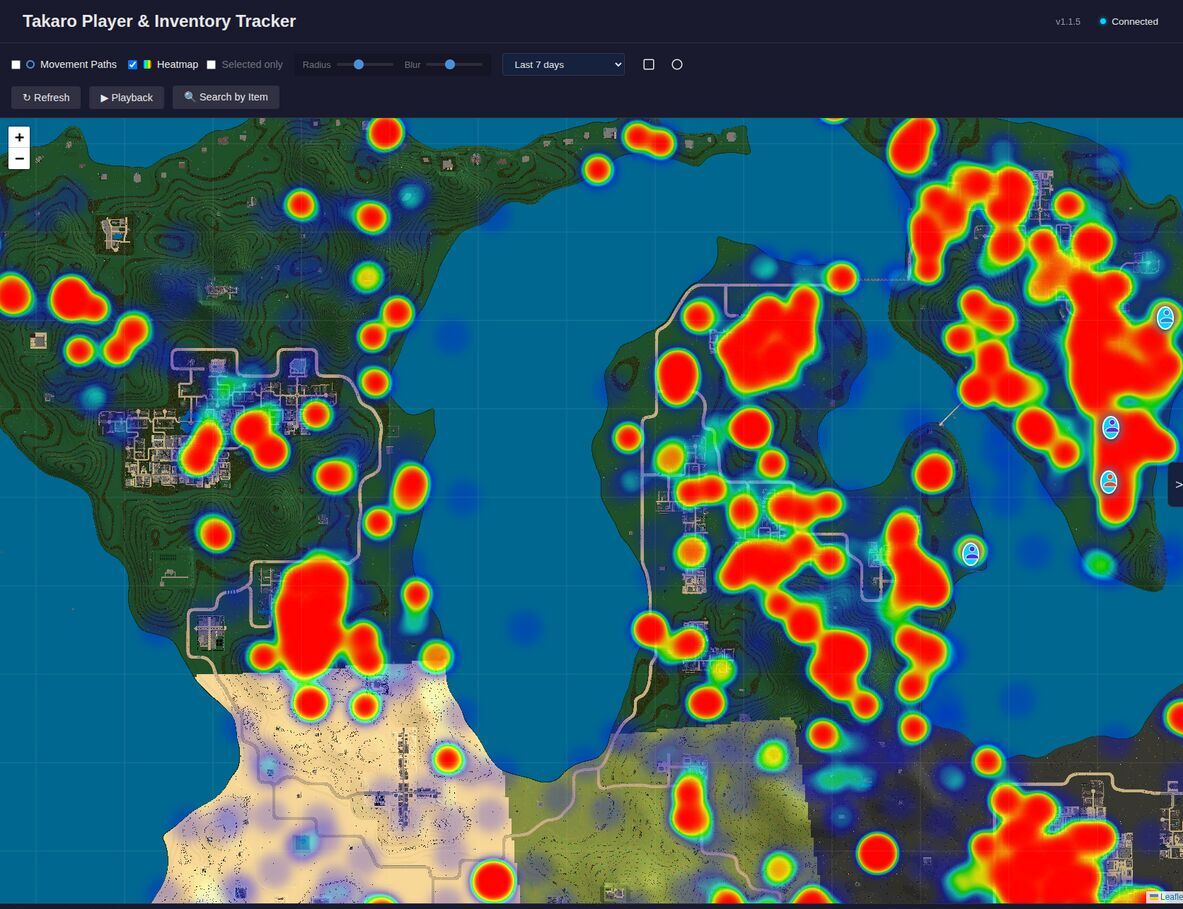
Activity Heatmap
Enable Heatmap to visualize player activity hotspots based on movement history. Areas where players spend more time will appear warmer (red), while less frequented areas appear cooler (blue).
Tips
- Refresh: Click the refresh button to manually update player positions and inventory
- Panel sizing: Use the expand/restore button to resize the player info panel
- Multiple tabs: Open Player Info, Item Search, or Area Search tabs as needed
Troubleshooting
Map tiles not loading
- Ensure your 7 Days to Die server has
EnableMapRenderingset totrueinserverconfig.xml - Map tiles are generated as players explore - unexplored areas will appear blank
- Verify the 7D2D web API connection is configured correctly
Players not appearing
- Check that players have logged in recently
- Verify your Takaro connection is active (shown in header)
- Try clicking the Refresh button
Inventory not updating
- Inventory snapshots are taken periodically by Takaro
- Use the time range selector to view more history
- Click Refresh to fetch the latest data